Publishing messages
RabbitGUI lets you publish a message to a queue or to an exchange from the Publish tab, with a full JSON editor, routing key autocompletion and a searchable history of everything you sent. It is the quickest way to send a test message, reproduce a bug, or replay a payload by hand.
Publish to a queue
Open any queue and go to the Publish tab. Write the payload in the editor, set the properties and headers you need, and send it.
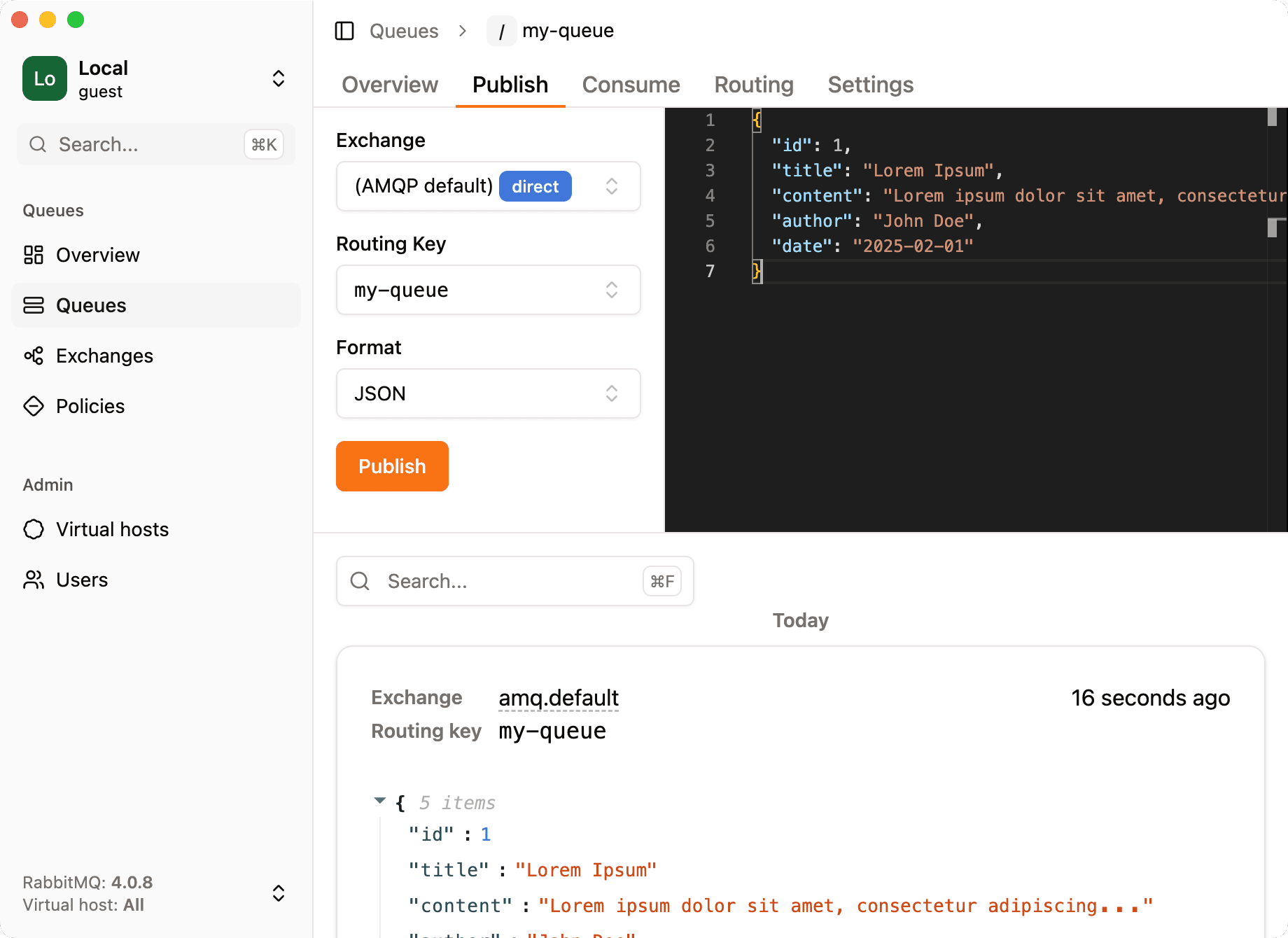
From a queue, you can choose where the message goes: RabbitGUI lists the bindings of the queue, so you can pick the exchange and routing key that will route the message to it, the same way your producers would. This tests your routing, not only your consumer.
Publish to an exchange
Open an exchange and go to its Publish tab. The screen is the same, and the routing key field autocompletes from the bindings of the exchange, so you don’t have to remember the exact key or pattern.
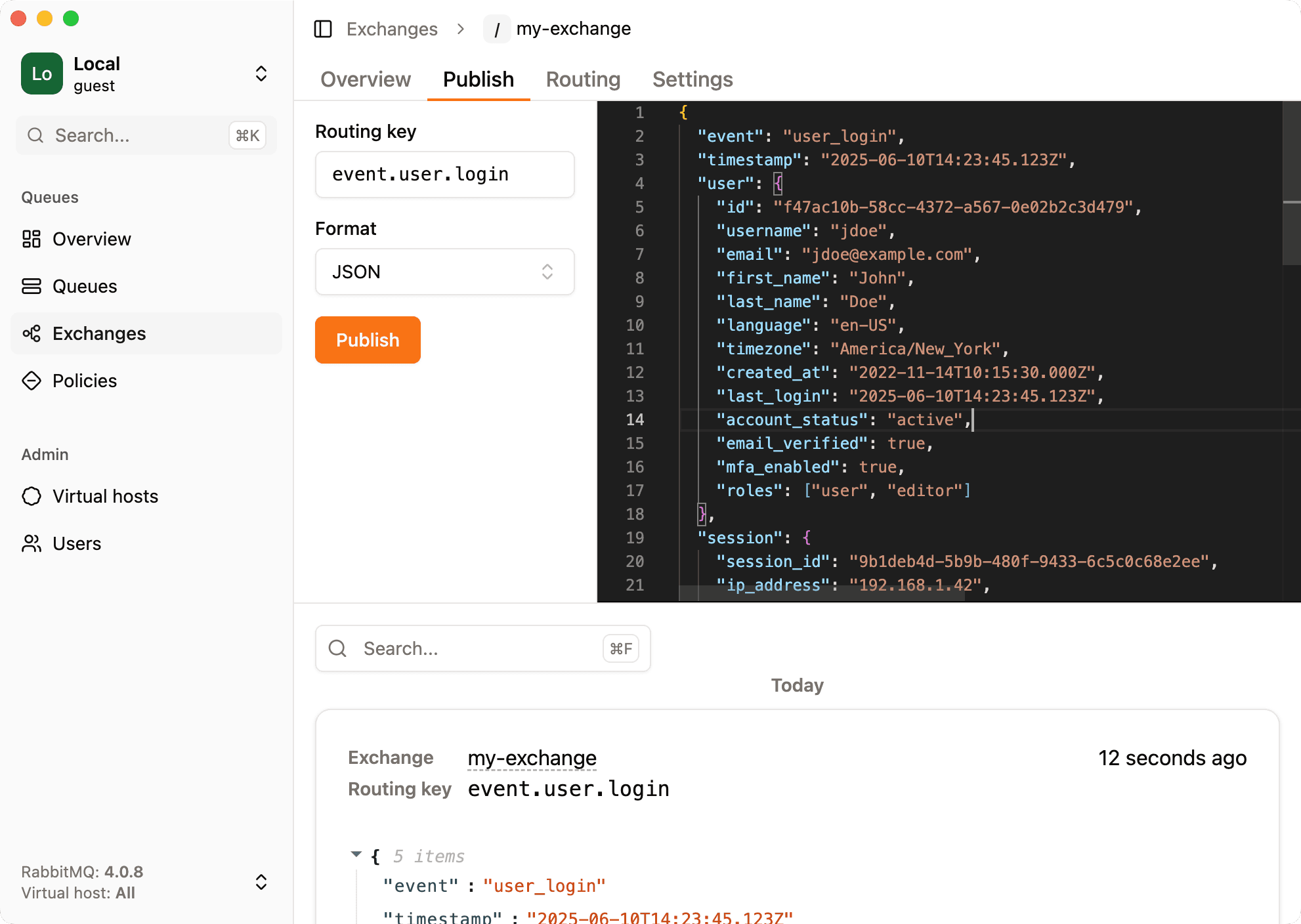
Write the payload
The payload editor is the editor from VS Code, with syntax highlighting and error markers, so a missing comma shows up before you send the message. Press ⇧⌥F to format the document. See JSON editor for details.
History of published messages
Every message you publish is saved in a local history, formatted and searchable. The history is shared across all queues and exchanges, so you can find a message you sent last week from any screen and send it again. Like the rest of your data, the history stays on your machine (see security and privacy).
Republish existing messages
To send messages that are already in RabbitMQ, for example from a dead-letter queue, you don’t need to copy them into the publish form. Load them in the consume tab, select the ones you want, and republish them to their original queue or to any exchange, with optional throttling.
Compared with the management plugin
The management plugin also has a “Publish message” section on queue and exchange pages, but the payload is a plain text area with no validation, there is no routing key autocompletion, and nothing you send is kept. Publishing from a queue page always goes through the default exchange with the queue name as the routing key, so your real routing is never tested. A side-by-side walkthrough is in how to manually publish messages to RabbitMQ.