Manage bindings
Bindings tell an exchange where to route messages: to a queue, or to another exchange. In RabbitGUI you manage them from the Routing tab of any queue or exchange.
The Routing tab
The Routing tab lists everything that routes messages into or out of the queue or exchange you are looking at, not only bindings. Each row has a type:
- binding: a regular binding from an exchange to a queue or an exchange.
- dead letter: a queue that dead-letters its messages to an exchange, through
x-dead-letter-exchangeor a policy. On a queue, this is where its rejected and expired messages go. On an exchange, these are the queues that dead-letter into it. - alternate exchange: where an exchange sends messages that no binding matches, through the
alternate-exchangeargument or a policy.
The other columns are the source, the routing key, the destination and the binding arguments. The current queue or exchange is marked This, and every other name is a link.
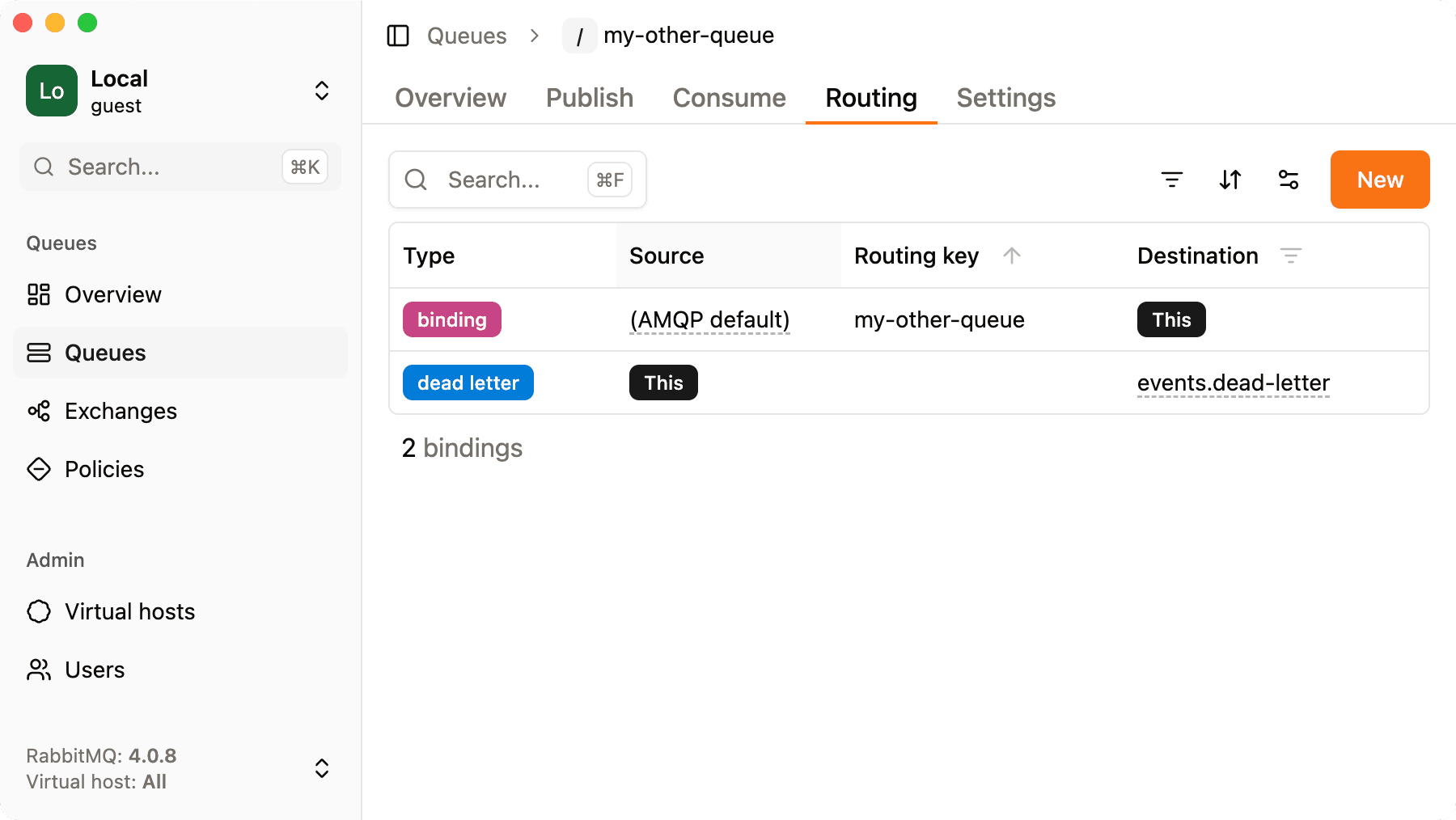
Like every list, the Routing tab supports search, filters, sorting and custom views.
Create a binding
Click New in the Routing tab to open the New binding form.
- From a queue, pick the exchange to bind from (From exchange) and the routing key. The destination is the queue you are on.
- From an exchange, the source is the exchange you are on. Pick the destination type (queue or exchange), the destination (To queue or To exchange) and the routing key.
The routing key field is hidden when the source is a fanout exchange, since fanout exchanges ignore routing keys. To pick the right key, see RabbitMQ exchange types explained.
Delete a binding
Open the row menu of a binding and choose Delete. RabbitGUI asks for confirmation before removing it.
Removing a binding stops new messages from being routed through it straight away. Messages already in the queue are not affected.
To see all bindings of a virtual host at once, use the routing graph.