How to manage dead letter queues with RabbitGUI?
Dead-letter queues collect messages that your broker could not deliver or retain on the original queue: rejections, expirations, length limits, and similar cases. RabbitGUI helps you inspect those messages and re-publish them when you are ready. RabbitMQ does not support treating the queue like a database natively, but RabbitGUI abstracts that away for you.
Two ways to load messages into RabbitGUI
Open the queue in RabbitGUI, go to the Consume tab, pick a mode, and use Extract messages. Both modes copy message data into a local database so you can inspect it without being limited to the broker’s consume-only API.
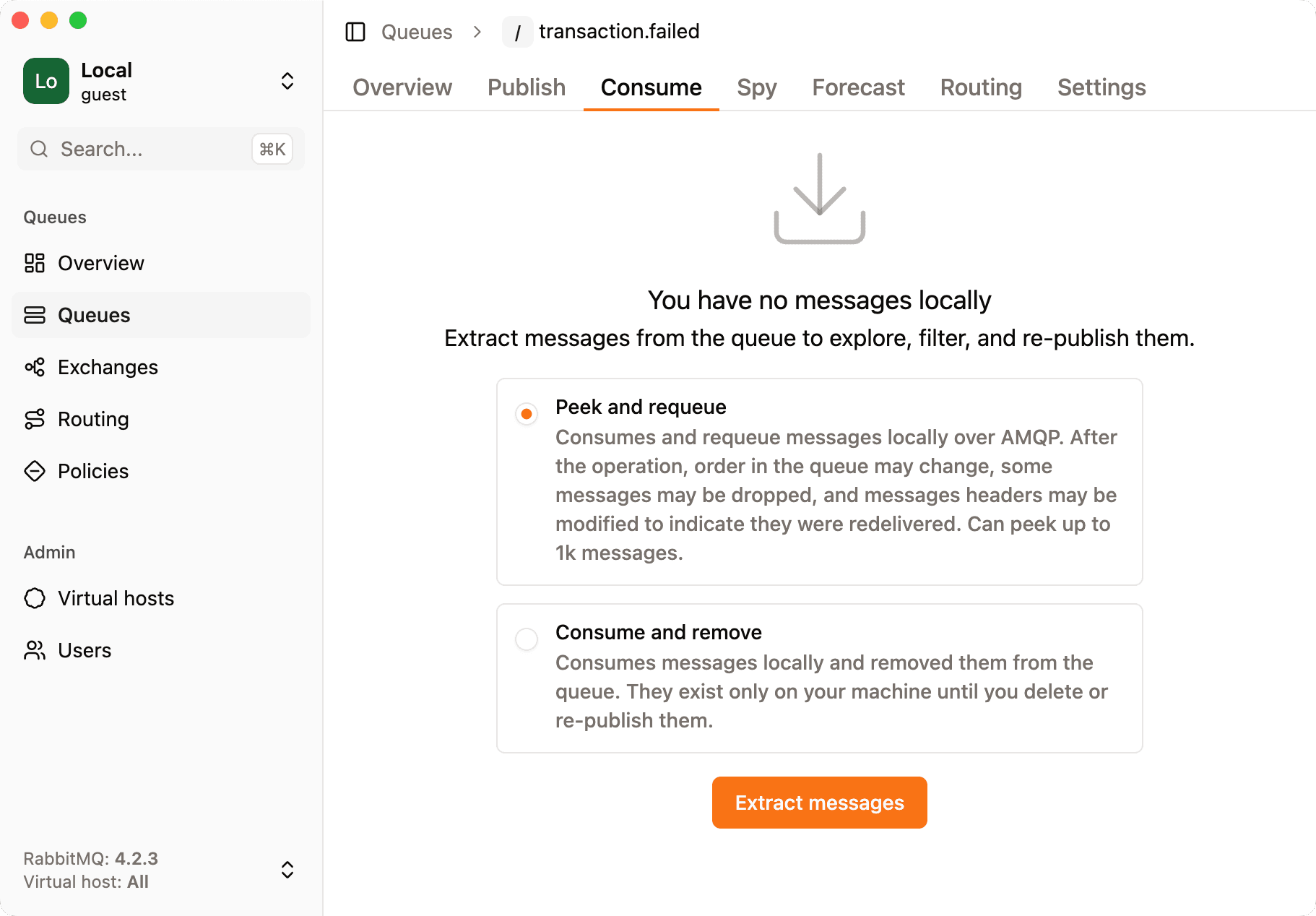
Peek and requeue
Messages are prefetched, stored locally, then nacked and requeued so they return to RabbitMQ.
| Aspect | Detail |
|---|---|
| Effect on the broker queue | Messages are not removed, they go back after inspection. |
| Volume | Only the first 1,000 messages at the head of the queue are available in this mode. Even if you consume again, you will be consuming the same messages. |
| Ordering | After requeue, order is not guaranteed, especially with multiple consumers on the same queue. But most of the time, order is not changed. |
| Headers | The broker may add or update headers on nack/requeue (for example x-death, x-delivery-count, x-first-death-exchange). If your app or routing depends on exact header shape, weigh this carefully. |
Use peek and requeue when you must leave messages on the broker and only need a window into the front of the queue.
Consume and remove
Messages are consumed from RabbitMQ and stored locally. They no longer exist on the broker queue.
| Aspect | Detail |
|---|---|
| Effect on the broker queue | Queue depth drops; messages exist only in RabbitGUI until you re-publish or discard them. |
| Volume | No fixed cap,you can drain the whole queue. |
| Recovery | To put traffic back, use Re-publish messages (see below). |
This is the more robust option for large backlogs or when you are deliberately draining a DLQ for triage.
You can mix both modes over time, RabbitGUI checks for duplicate messages so you can safely peek the same messages multiple times. RabbitGUI records whether each stored copy was taken with requeue or removal.
The message explorer
After extraction, use the explorer to review what you pulled. You can search, filter, explore pages and more.
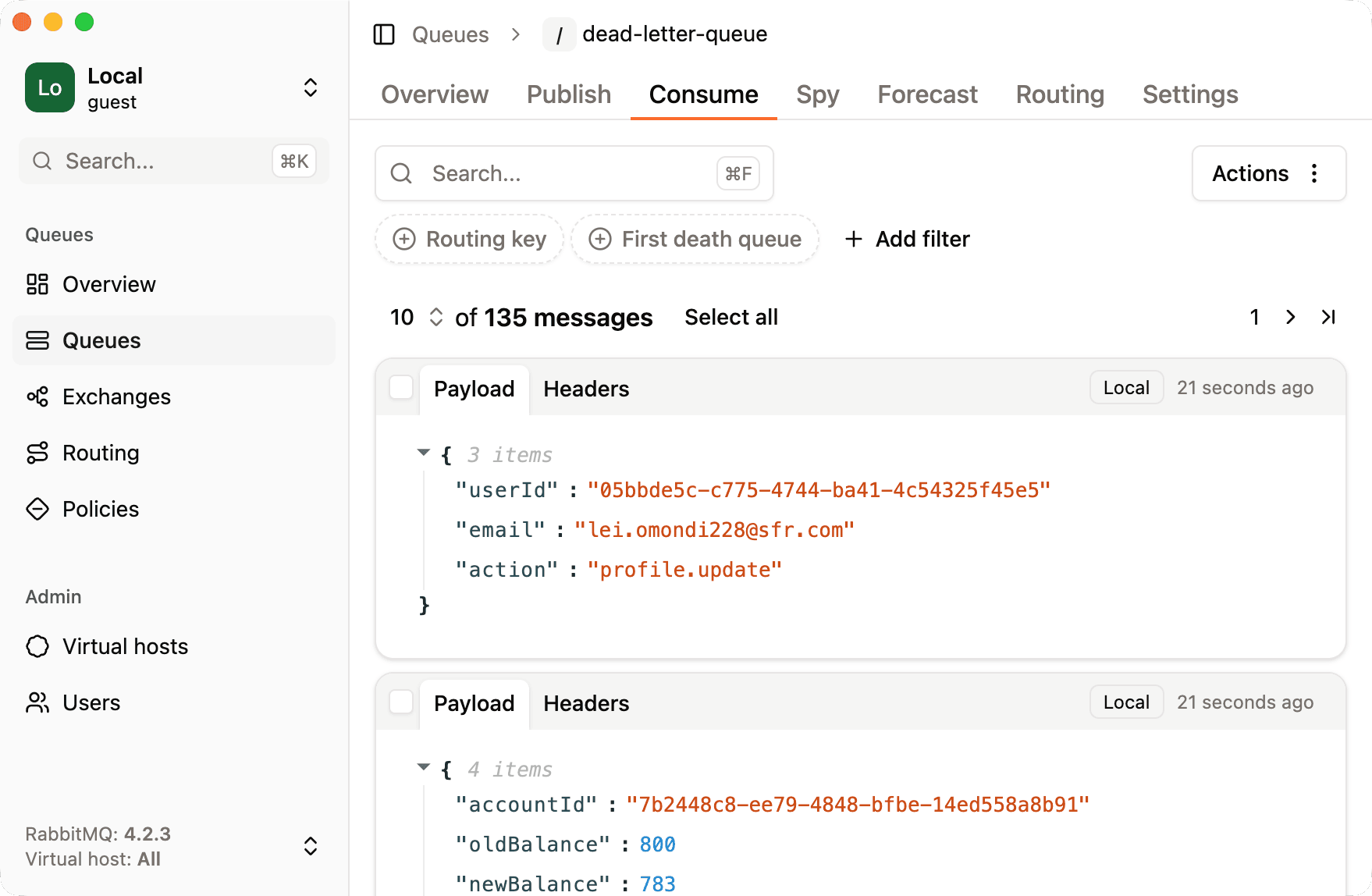
Messages that exist only in the local database (because they were consumed and removed) are marked accordingly by the Local badge on the right of the top bar.
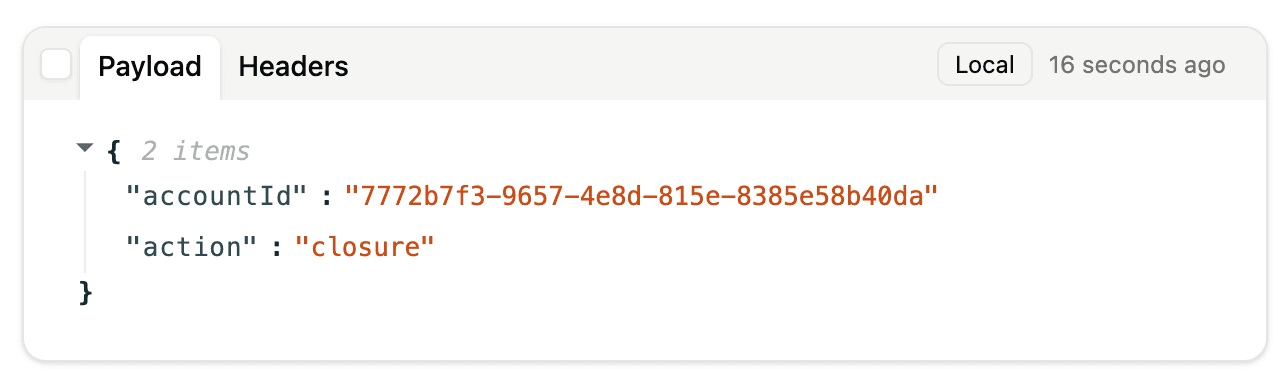
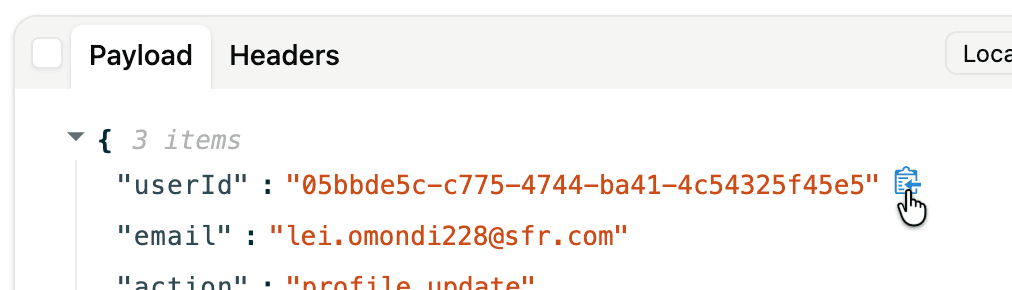
You can copy the entire body of a mesage or just the value of a single key by click the copy button on the message. Very handy for quickly copying values.
Message headers
Open a message’s Headers tab to see all headers in a readable layout. RabbitMQ adds structured information for dead-lettered messages (often including x-death entries describing reason, queue, and time).
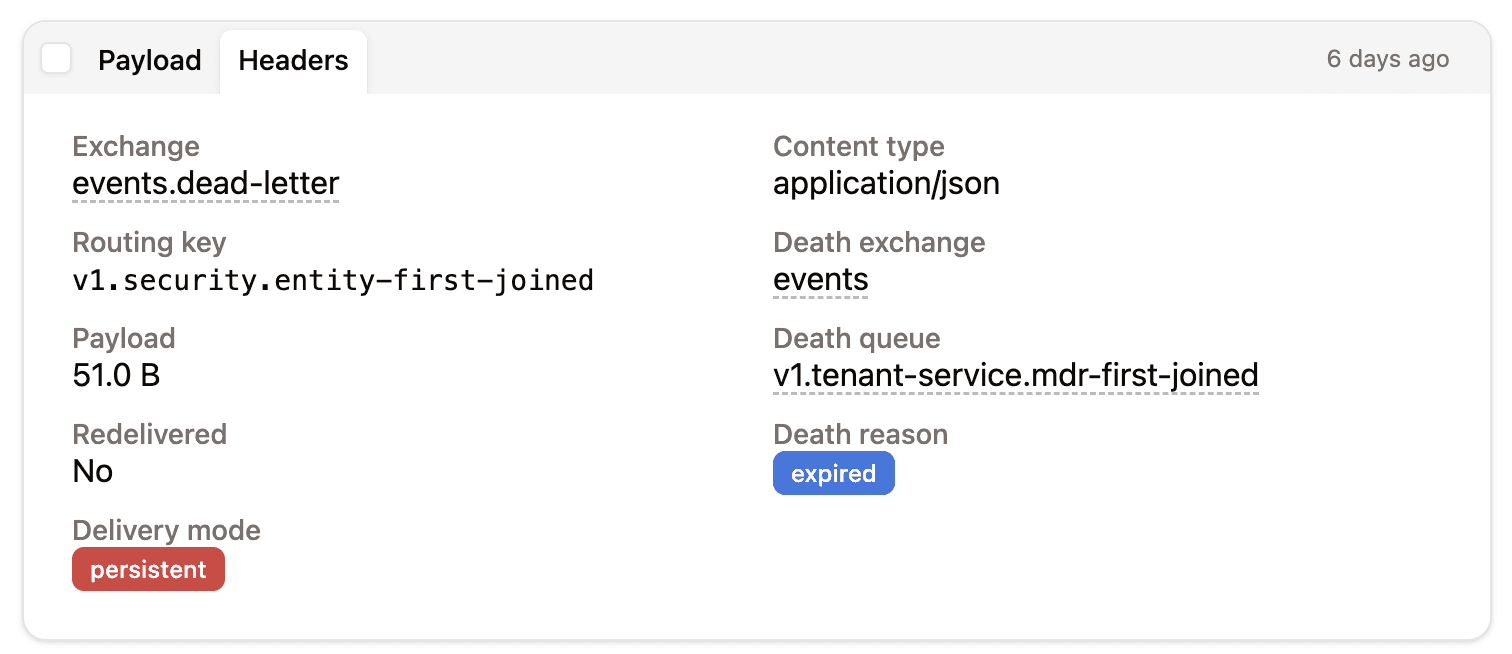
Where RabbitGUI shows a queue or exchange name as a link, you can navigate straight to that object’s detail view to verify bindings, arguments, or policies.
Filtering and statistics
You can filter on message properties. For example routing key, queue name, or death-related metadata. So you can find a specific failure pattern or skim counts by key.
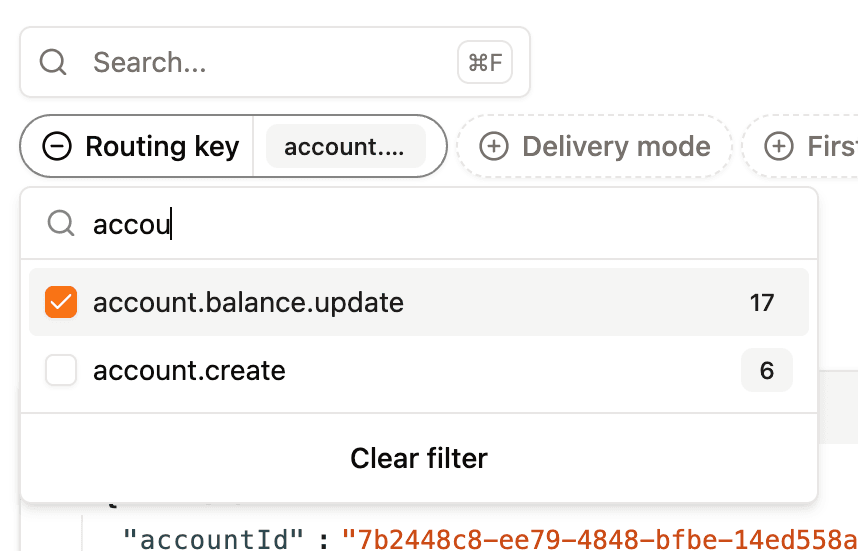
Use this both for one-off debugging and for quick distribution checks (how many dead letters per routing key, and so on).
Deleting messages
Select the messages you want to delete using the checkbox in the top left corner of each message, or click Select all if you want to delete everything. Then go to Actions and choose Delete.
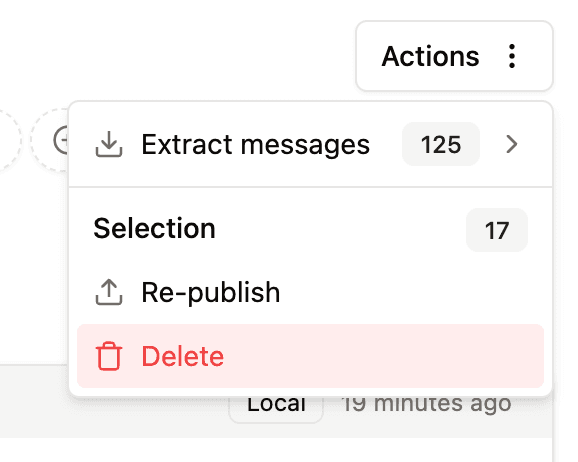
Deleting a message that only leave locally on your machine will delete the message forever since it is no longer in the queue.
You can also delete random messages that still live in the queue (not necessarily in the front of the queue). To achieve that, RabbitGUI does the same thing that peeking does, it prefetches all messages in the front of the queue, but then it acknowledges the messages you want to delete so that RabbitMQ drops them from the queue, and finally nacks and requeues all other messages.
This is extremely useful since it is not native to RabbitMQ, but note that the same limitation as peeking apply.
Re-publishing messages
Republishing messages removes them from your local database and from the queue (see deleting messages) and publishes them back to RabbitMQ based on your selection.
Select one or more messages (or Select all), open Actions, and choose Re-publish.
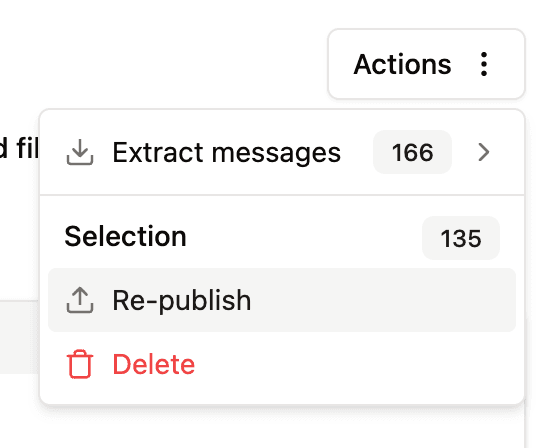
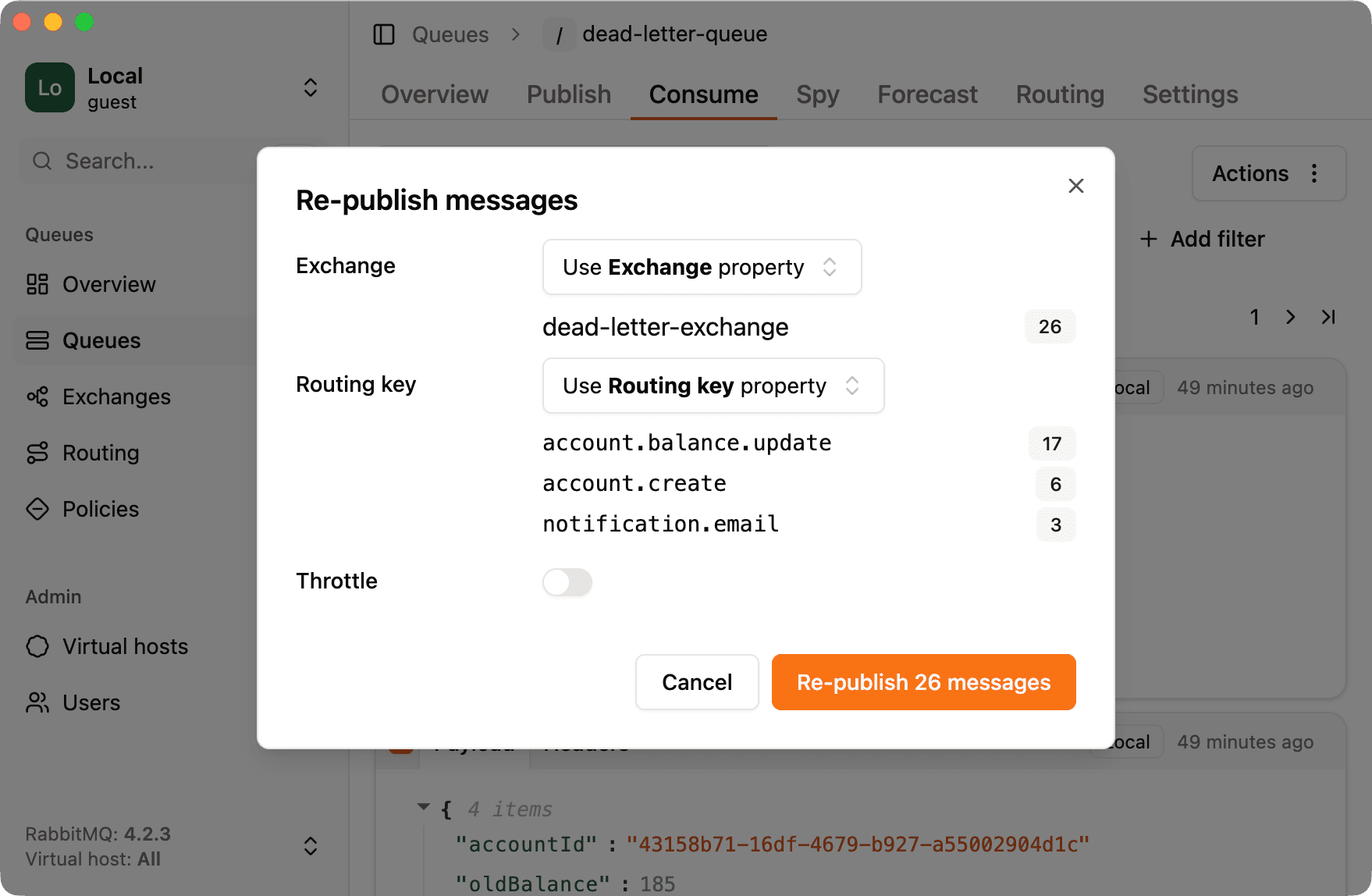
In the modal you can set:
- Destination exchange: where the messages should be published.
- Routing key: optionally different from the original, if you need to re-route into another binding or topology.
Before anything is sent, RabbitGUI shows a preview of the values it will use. Use that to confirm exchange and routing key match your intent.
You can override the routing key or exchange by selecting Custom and choosing the value you need.
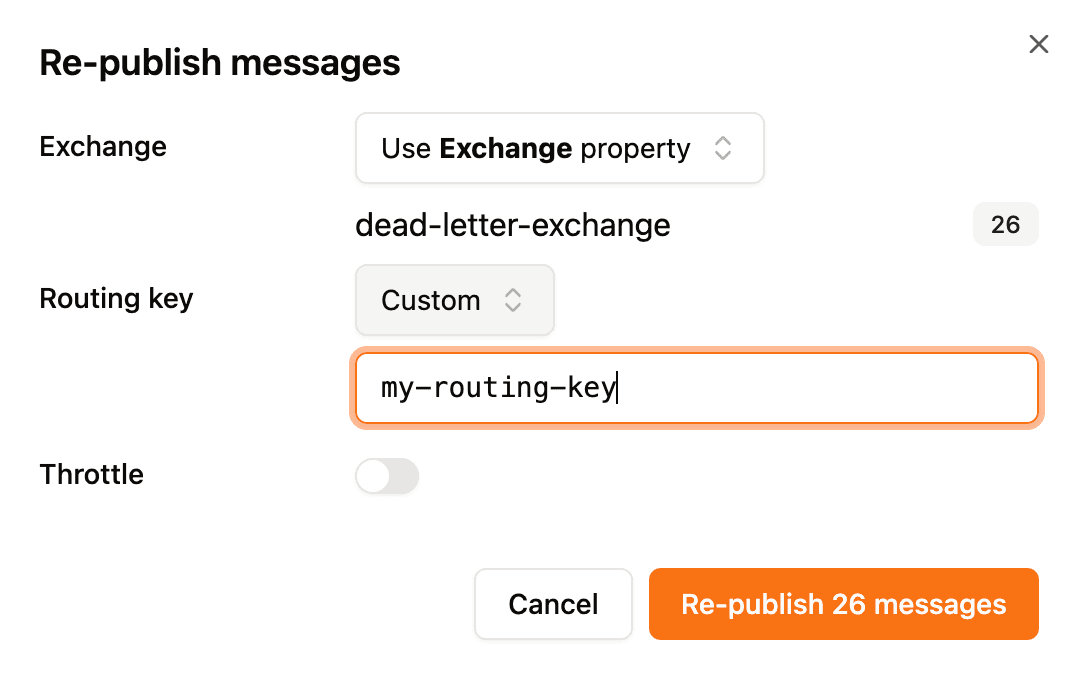
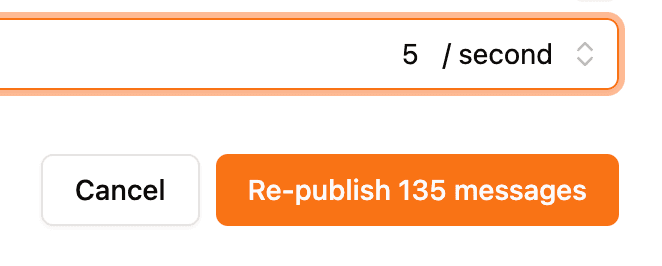
Large DLQs can generate a sharp spike of publishes. In the re-publish modal, enable Throttling and set a rate so the broker and downstream consumers are not overwhelmed.
Throttling also allows real time messages to pass in between republished messages without having to wait for the entire batch to finish before being handled.