Installation
Follow these steps to purchase RabbitGUI, install it on your machine, and activate your license.
Buy a license
Purchase a license and complete checkout via Stripe.
Check your email
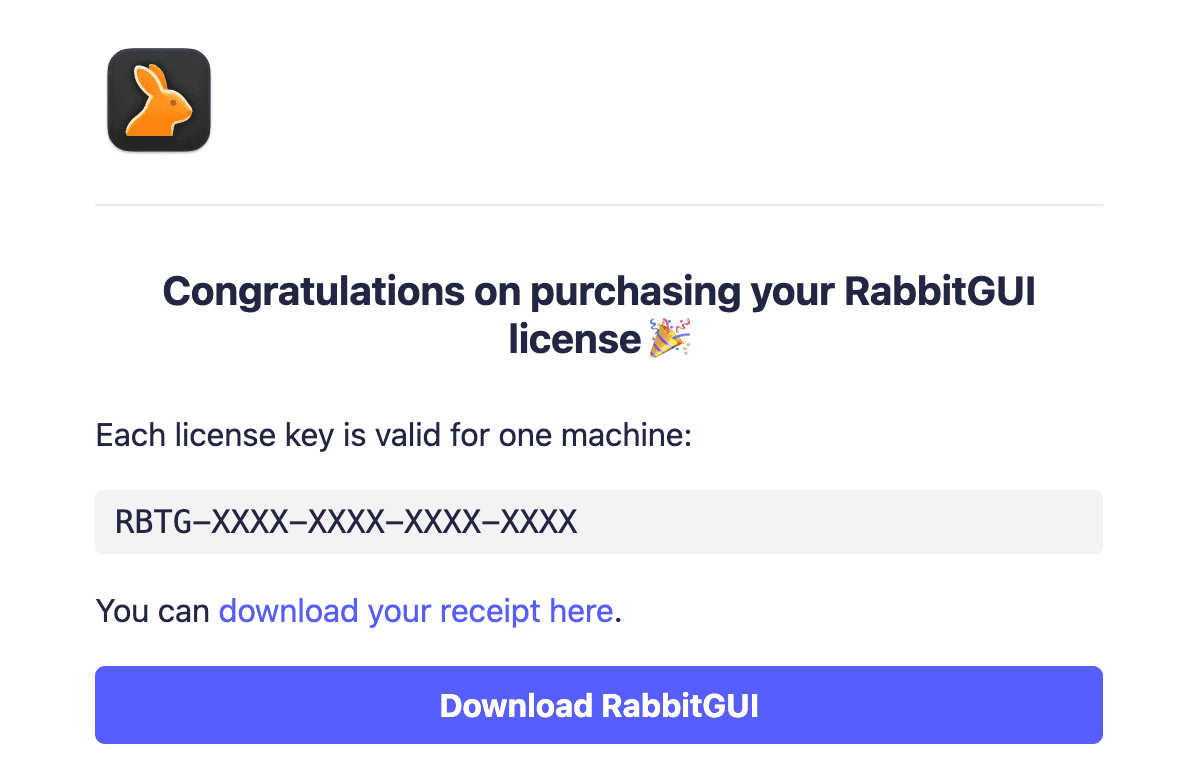
You will get an email from @tggl.io with your license key and a download link for the app. If nothing appears in your inbox within a few minutes, check your spam or promotions folder.
Download and install
Use the download link in the email and pick the build that matches your operating system. See the supported platforms section for the exact version supported by RabbitGUI.
- macOS: DMG for Apple silicon or Intel
- Windows: Windows installer (64-bit).
- Linux:
.debpackage or AppImage, depending on what you prefer on your distribution.
Run the installer or open the package as you normally would for that platform.
Open RabbitGUI and enter your license
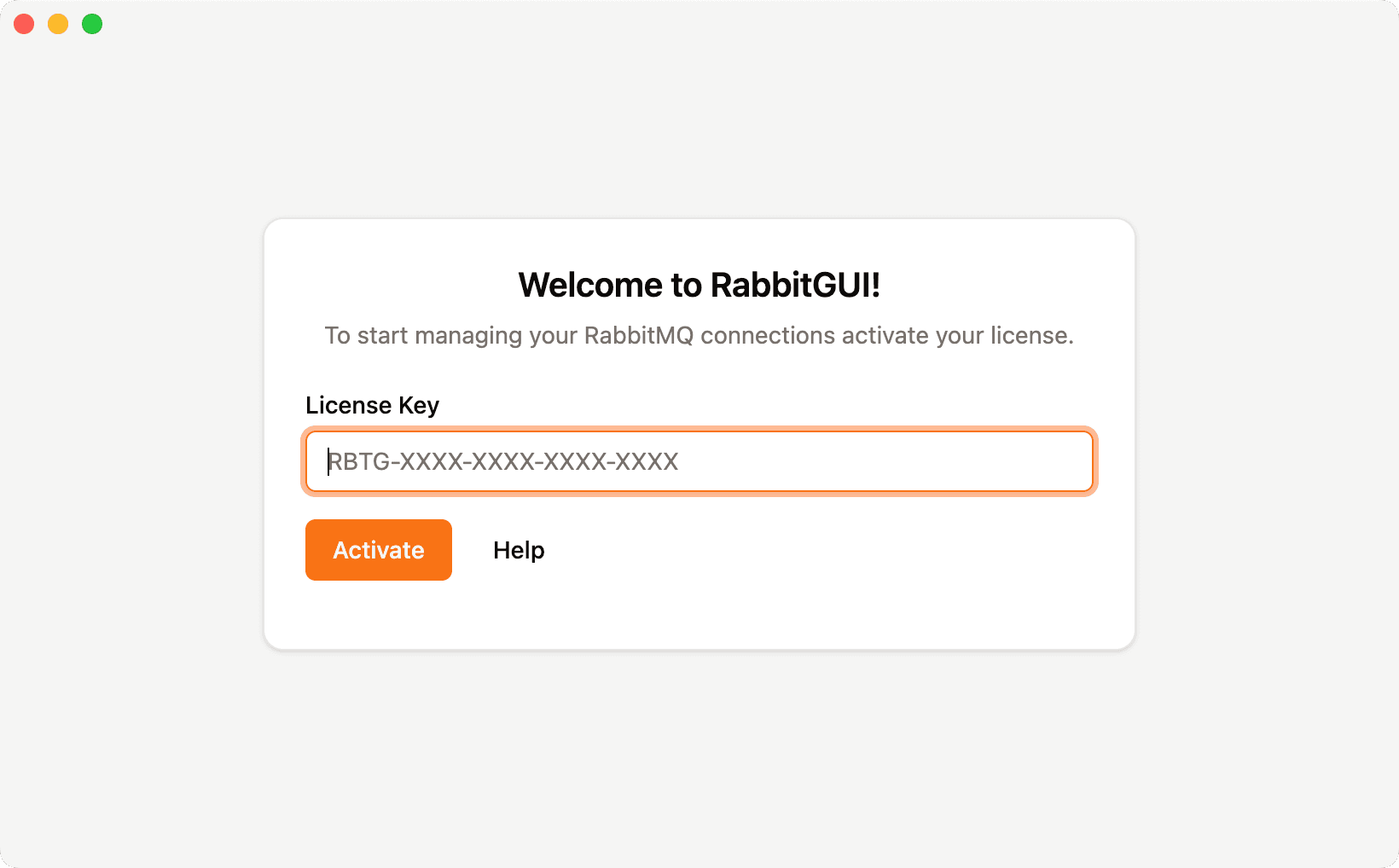
Launch the app. When prompted, paste your license key from the email. After activation, you are ready to connect to RabbitMQ (see managing connections when you are ready to add a broker).
Lost your key or need to download again?
If you lose your license key or want to download the installer again, use the license manager. There you can get your key, download link, manage machines, etc…