Navigating bindings
Following a message through RabbitMQ usually means jumping between an exchange, the queues bound to it, their dead-letter exchanges and the queues bound to those. RabbitGUI makes every hop a single click.
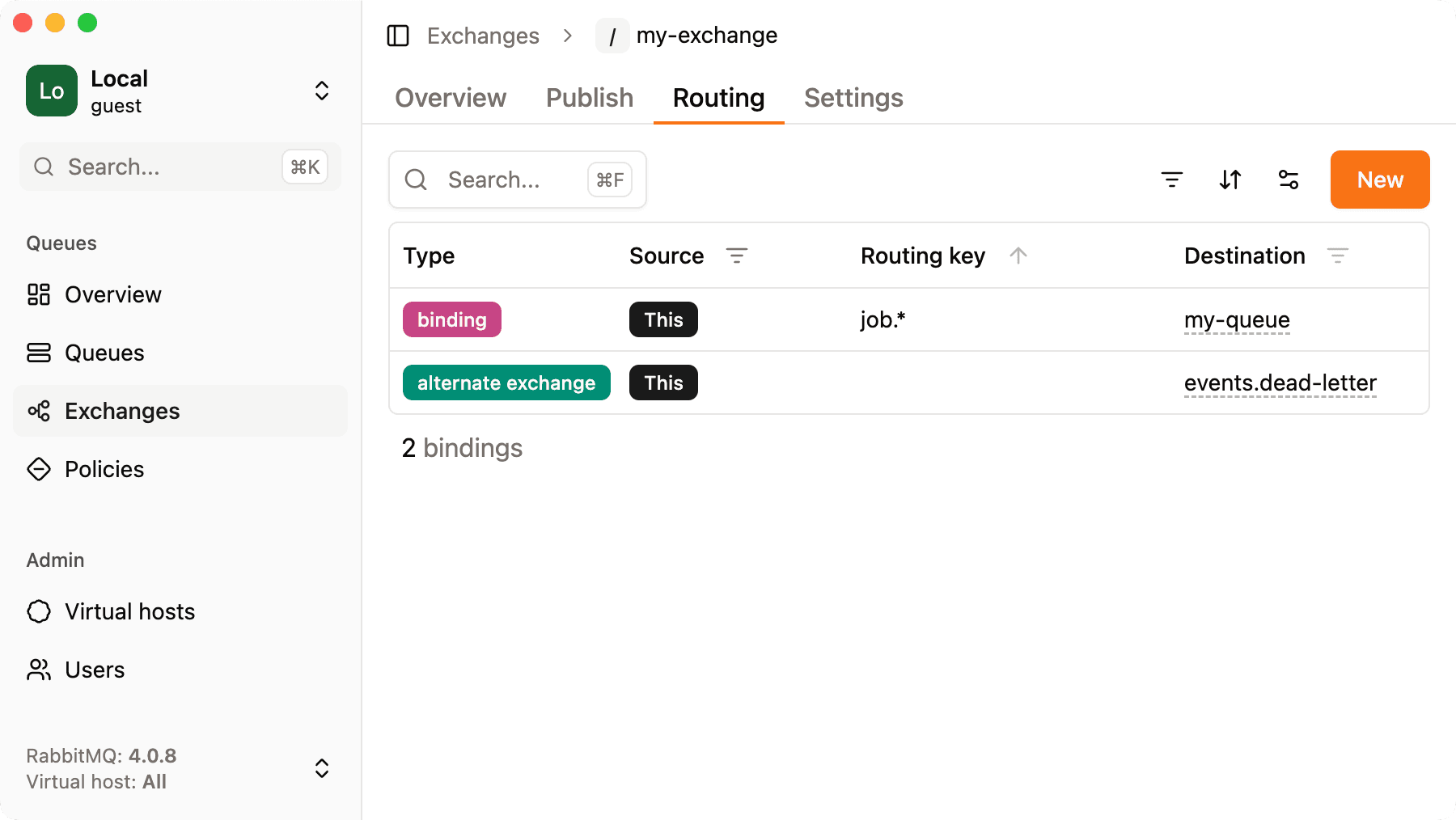
Follow the route from the Routing tab
In the Routing tab of a queue or an exchange, the source and the destination of every row are links. Click one to open that exchange or queue, then open its own Routing tab to keep going.
A typical path when debugging dead letters:
- Open the queue where messages are rejected. Its Routing tab shows a dead letter row pointing to its dead-letter exchange.
- Click the exchange. Its Routing tab shows the binding to the dead-letter queue, with its routing key.
- Click the dead-letter queue and use Consume to inspect the messages.
The same works for alternate exchange rows, to find where unroutable messages end up.
Follow the route from settings and messages
Dead-letter and alternate exchanges are also links in the Settings tab of queues and exchanges, whether they are set by an argument or by a policy. In messages captured with Spy or Consume, the exchange a message was published to, and the exchange and queue it was dead-lettered from, are links too. See smart navigation for everything that is clickable.
See the whole route at once
When a route has many hops, switch to the routing graph: it draws bindings, dead-letter routes and alternate exchanges for a whole virtual host on one screen.