Custom views
Every list in RabbitGUI (queues, exchanges, virtual hosts, policies, users, and the routing tab of queues and exchanges) can be saved as a view: a named combination of filters, sorting, visible columns and column widths. Use views to keep the screens you check every day one click away, for example “Queues with unacked messages” or “DLQs in production”.
Customize a list
Each list has the same controls in its toolbar:
- Search (⌘F) filters rows by text.
- Filters adds filters on any column, for example a virtual host, a queue type or a minimum number of messages.
- Sorting sorts on one or more columns.
- Columns shows or hides columns. You can also resize columns by dragging their borders.
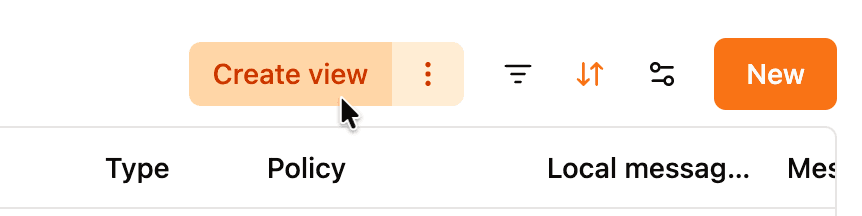
When you change any of these, the list is “dirty” and an orange button appears in the toolbar.
Create a view
Click Create view to save the current filters, sorting, columns and widths. The view is created with a default name, which is selected so you can type a new one right away. Press Enter to confirm, or Escape to keep the previous name.
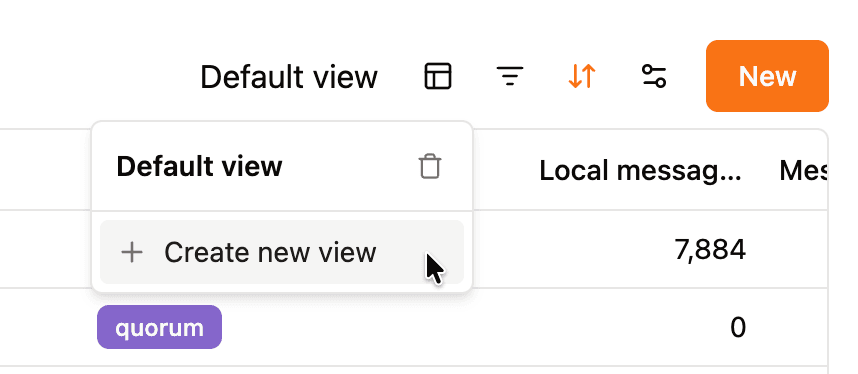
To create another view from the current state, open the ⋮ menu next to the orange button and pick Create new view.
Update or reset a view
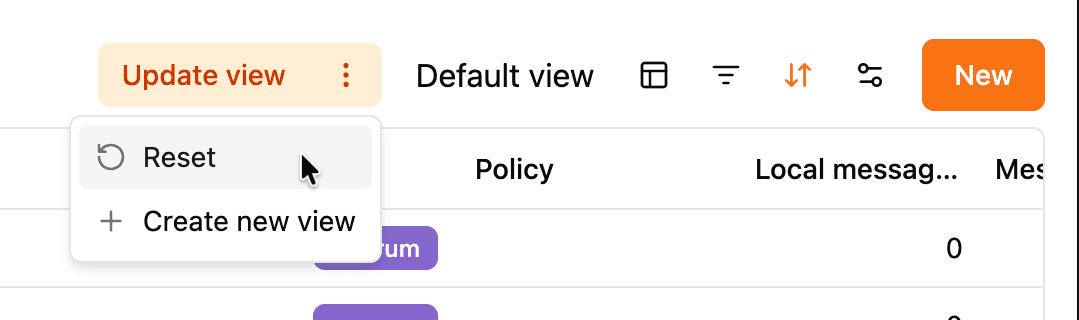
Once a view is active, changing the list shows an Update view button: click it to save the changes into the active view. The ⋮ menu also has Reset, which discards your changes and goes back to the saved view.
Switch, rename and delete views
- Click the Views button to see every view saved for this list, pick one to apply it, or click the trash icon to delete it.
- Click the name of the active view in the toolbar to rename it.
Views are saved per list and stored locally on your machine, so they are available for every connection and survive restarts.
Views and virtual hosts
When you select a virtual host in the sidebar, lists are automatically filtered on that virtual host and the virtual host column is hidden. This filter is applied on top of your view, so the same view works for every virtual host.