Managing connexions
RabbitGUI can talk to more than one RabbitMQ cluster. Each saved profile is called a connexion: it stores the management UI URL and the credentials RabbitGUI uses to sign in. This allows you to seamlessly switch from one to another in one click, without have to copy-paste your credentials all the time.
What is a connexion?
A connexion is a named entry in RabbitGUI that points at a specific RabbitMQ cluster. When you pick a connexion, the app loads queues, exchanges, policies, and the rest of the management data for that cluster.
You can keep several connexions (for example local, staging, and production) and switch between them without retyping URLs or passwords each time.
Creating a new connexion
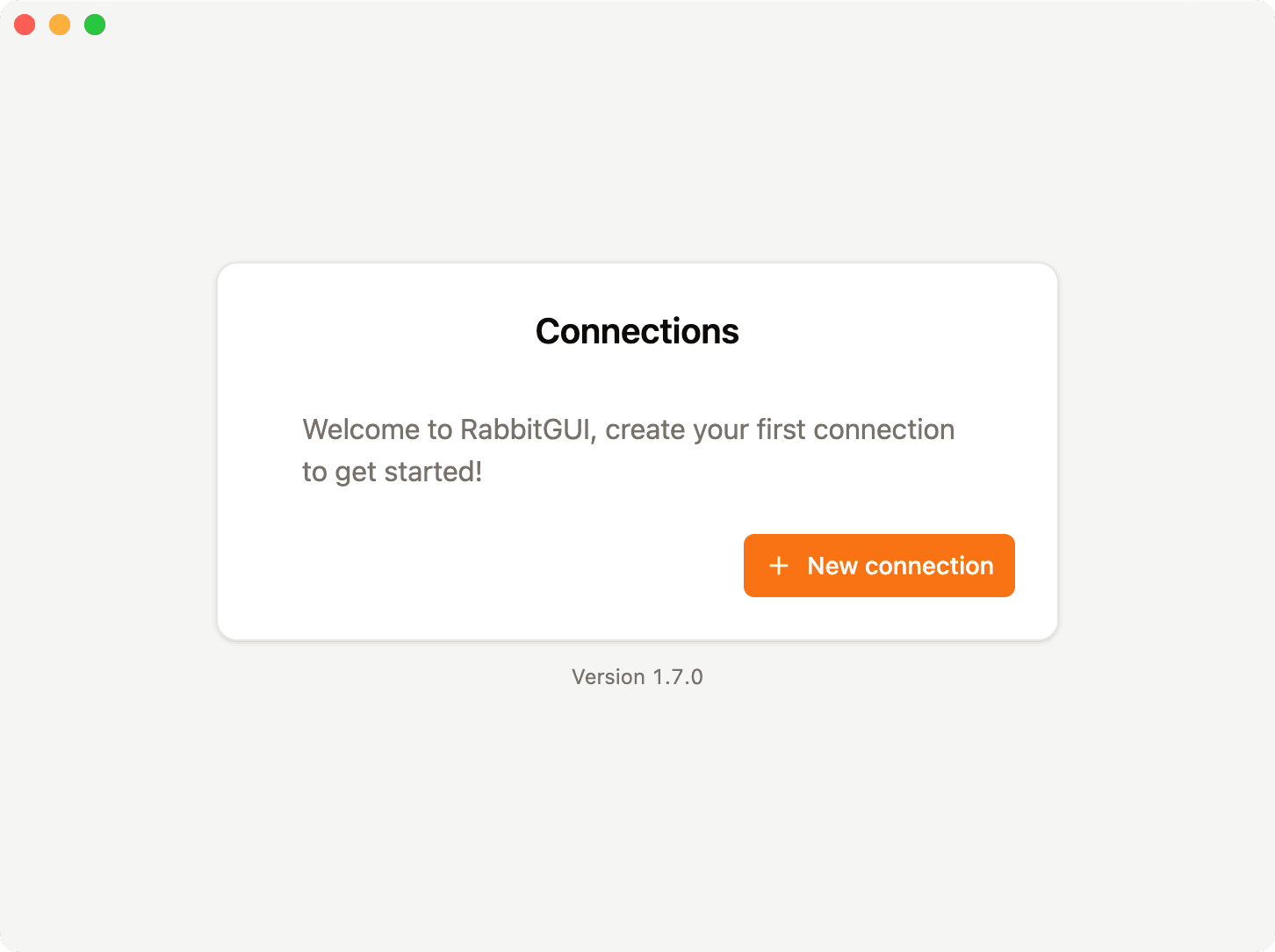
Click the New connection button
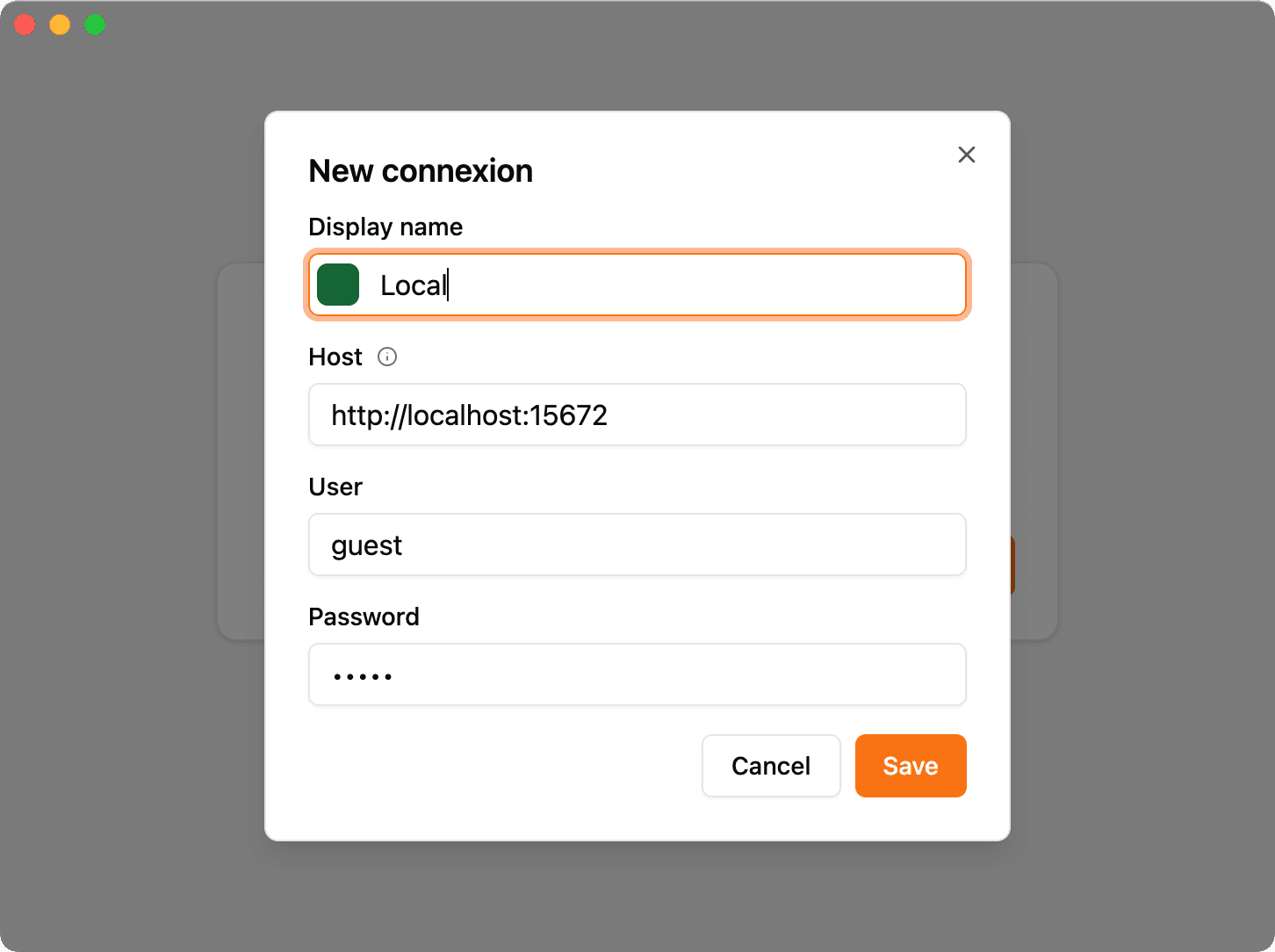
Name the connexion
Choose any name that helps you recognize the cluster. RabbitGUI deduces a color from the name automatically, you can change the color if you want a different visual cue in the UI.
Enter credentials and save
Fill in the credentials for that broker, then save. RabbitGUI checks the credentials immediately so you know whether the URL and login are valid.
Sign in
Click your newly created connexion to log in and start working with that cluster.
What credentials to put in?
Use values that already let you use RabbitMQ’s management UI in a browser:
- Management UI URL: the base URL of the management interface (scheme, host, port, and path prefix if your deployment uses one), as you would open it in a browser.
- Username and password: the same user and password that allow access to that management UI (not necessarily the same as AMQP credentials unless your setup uses the same accounts).
If those details work in the browser, they are what RabbitGUI needs for everyday management features driven by the HTTP API.
Updating a connexion
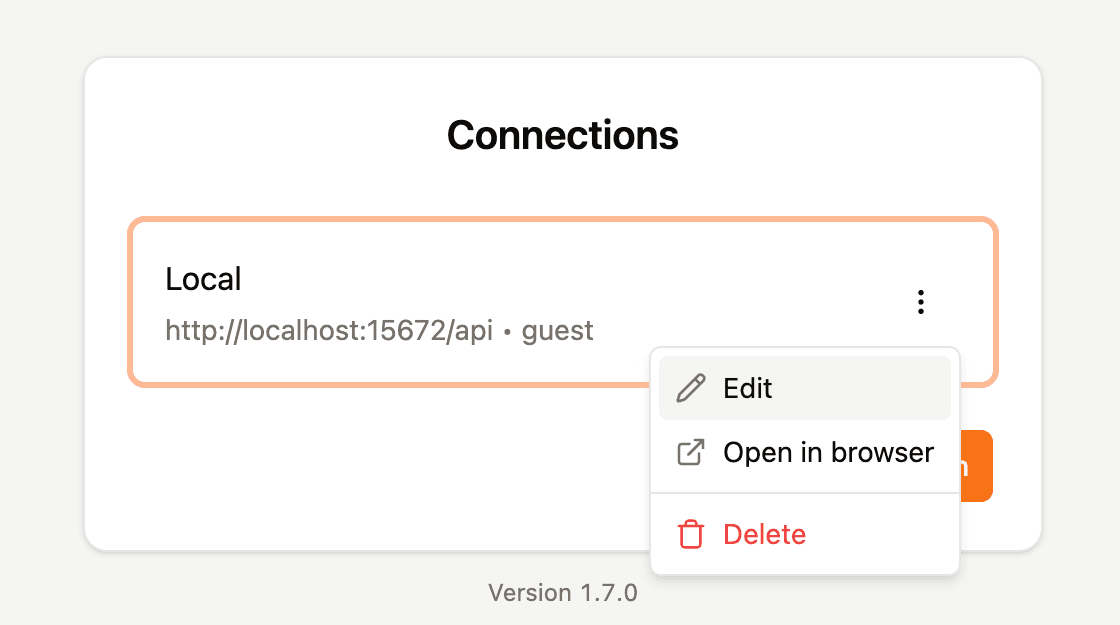
Open the menu for the connexion (), then choose Edit. You can change the name, color, URL, or credentials and save again.
Switching from one connexion to another
In the upper-left area of the app, click the connexion you want to use. RabbitGUI switches context to that cluster.
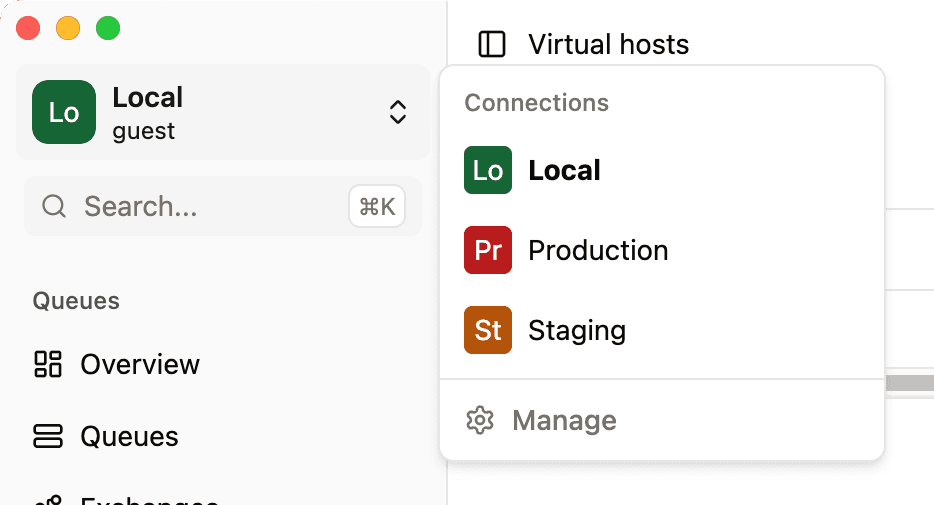
If you are viewing a specific queue and the other connexion also has a queue with the same name, the UI will show the new queue’s data. This is very useful when switching environment and expect the same queues to exist.
You can also manage all connexions from the menu: open Manage to see and organize them in one place.
Opening the connexion in a browser
From the menu (), choose Open in browser. RabbitGUI opens the management UI URL in your default browser. You will need to sign in manually there with the username and password, the browser session is separate from the in-app connexion.