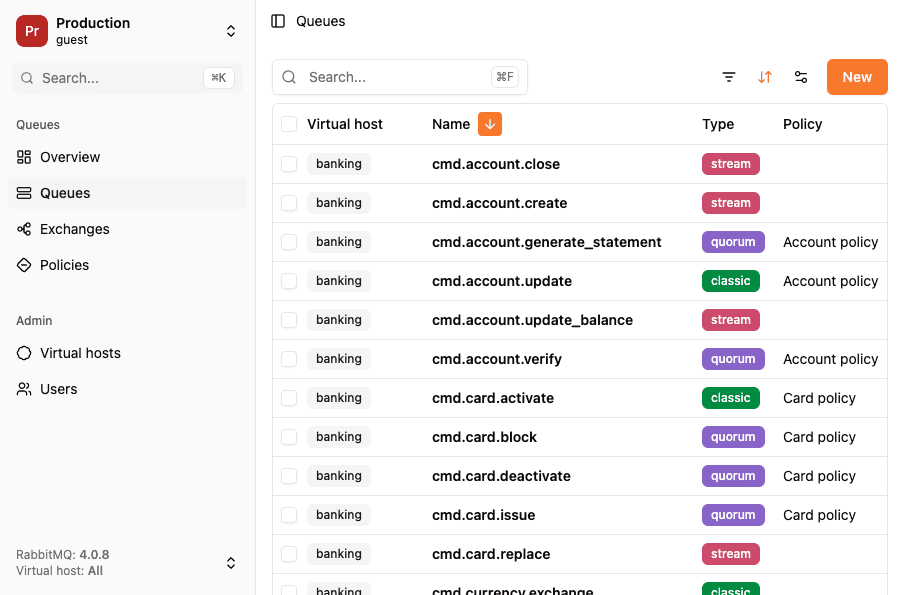
RabbitMQ default ports overview
RabbitMQ uses several different ports for different purposes. Understanding these ports is essential for setting up your RabbitMQ instance correctly and ensuring proper network connectivity.
Main RabbitMQ ports
- 5672: AMQP protocol port (default for client connections)
- 15672: RabbitGUI and HTTP management API port
- 5671: AMQP over TLS/SSL port
- 15671: HTTPS management UI and API port
- 4369: Epmd (Erlang Port Mapper Daemon) - used for cluster node discovery
- 25672: Inter-node and CLI tools communication port
The AMQP port (5672)
The most important port is 5672, which is the default port for AMQP (Advanced Message Queuing Protocol) connections. This is the port your application clients will use to connect to RabbitMQ to publish and consume messages.
Example connection string using the default port:
amqp://guest:guest@localhost:5672If you're using TLS/SSL for secure connections, the default port changes to 5671:
amqps://guest:guest@localhost:5671The management UI port (15672)
Port 15672 is used by tools like RabbitGUI and the built-in RabbitMQ management plugin. This port provides access to:
- HTTP API for programmatic management
- Monitoring and statistics
- Web-based UI for managing RabbitMQ
You can connect to your instance with RabbitGUI on this port:
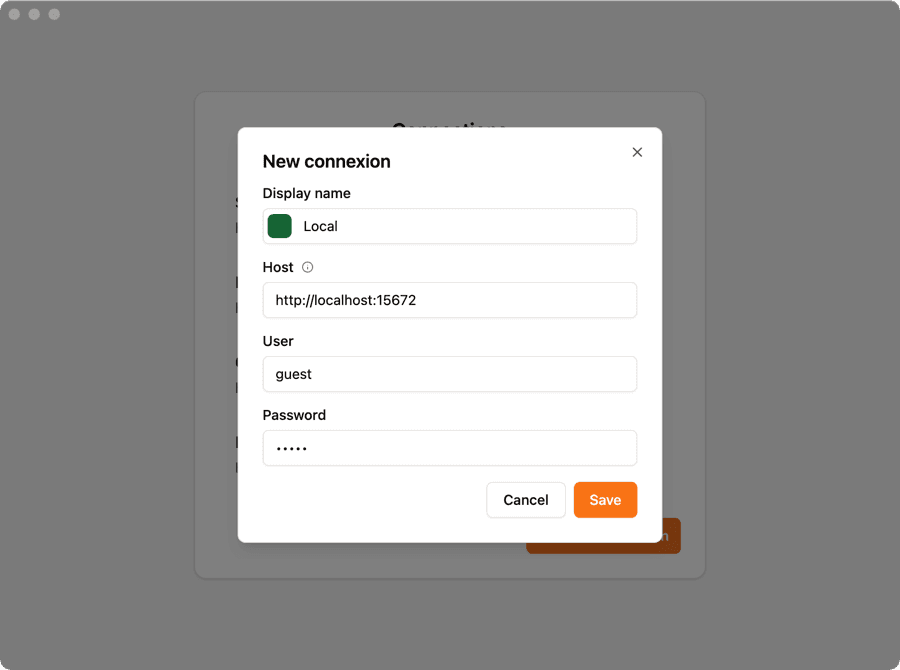
RabbitGUI is a powerful RabbitMQ IDE that makes it easy to manage your RabbitMQ instances. It automatically handles the connection details and provides a much better interface than the default management UI.
You can also access the web-based management interface by navigating to:
http://localhost:15672For HTTPS connections, use port 15671 instead.
Clustering ports
If you're running RabbitMQ in a cluster, you'll need to ensure these ports are accessible:
- 4369: Epmd port for peer discovery
- 25672: Inter-node communication (can be configured)
The inter-node communication port is typically 25672, but RabbitMQ actually uses a range of ports starting from this number. By default, it uses ports in the range 25672-25682.
Customizing RabbitMQ ports
You can customize RabbitMQ ports by modifying the rabbitmq.conf configuration file:
# AMQP port
listeners.tcp.default = 5672

# Management plugin port
management.tcp.port = 15672

# Inter-node communication
distribution.listener.port = 25672
Using Docker
If you're running RabbitMQ in Docker, you can map the ports using the -p flag:
docker run -d --name rabbitmq \
  -p 5672:5672 \
  -p 15672:15672 \
  rabbitmq:3-management
This maps both the AMQP port (5672) and the management UI port (15672) to your host machine.
Firewall considerations
When deploying RabbitMQ in production, make sure to:
- Secure the management port (15672): This should not be publicly accessible. Use a firewall or VPN to restrict access.
- Open the AMQP port (5672): Only to trusted networks or applications that need to connect.
- Use TLS/SSL: Switch to ports 5671 and 15671 with proper SSL certificates.
- Restrict cluster ports: Ports 4369 and 25672 should only be accessible within your cluster network.
Common connection issues
If you're having trouble connecting to RabbitMQ, check:
- Is RabbitMQ running? Check with
rabbitmqctl status - Are the ports open? Use
netstat -an | grep 5672orlsof -i :5672 - Firewall blocking? Ensure your firewall allows connections to the required ports
- Correct port? Remember, client connections use 5672, management UI uses 15672
- Guest user restrictions: The default guest user can only connect from localhost (see RabbitMQ default login)
For a full walkthrough of running the broker in containers, see RabbitMQ with Docker and Docker Compose.
Summary
- 5672: Default AMQP client connection port
- 15672: Default management UI and API port
- 5671/15671: Secure TLS/SSL versions of the above
- 4369: Cluster peer discovery
- 25672: Inter-node cluster communication
For the best RabbitMQ management experience with an intuitive interface and powerful features, try RabbitGUI, it connects using the management port (15672) and provides everything you need to work with RabbitMQ efficiently.