Quick Start: Run RabbitMQ with Docker
The fastest way to get RabbitMQ up and running is with a single Docker command:
docker run -d \
  --name rabbitmq \
  -p 5672:5672 \
  -p 15672:15672 \
  rabbitmq:management
This command:
- Runs RabbitMQ in detached mode (
-d) - Names the container
rabbitmq - Exposes port 5672 for AMQP protocol (your applications connect here)
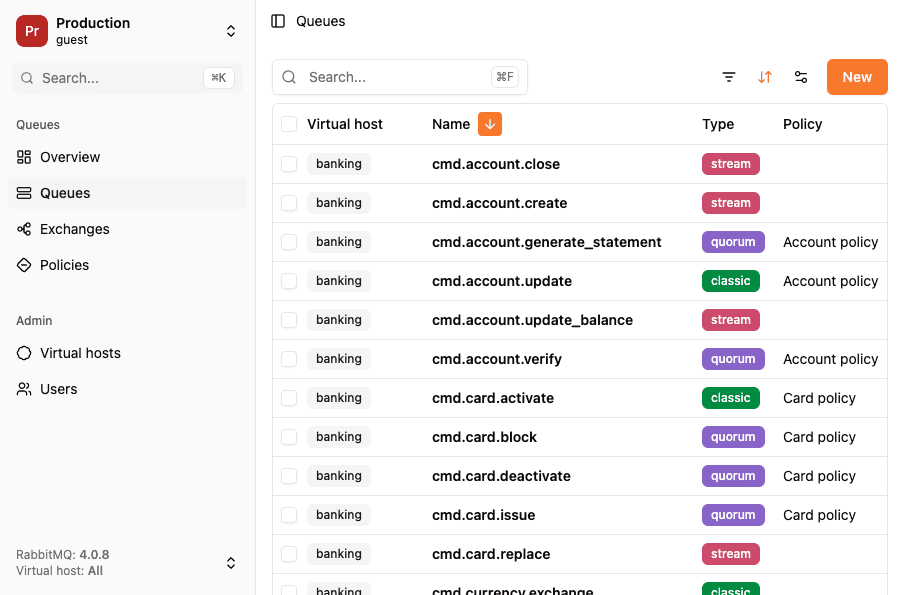
- Exposes port 15672 for the management UI (RabbitGUI can connect here)
- Uses the latest
rabbitmq:managementimage
For the full list of ports RabbitMQ uses, and which ones you need to publish, see RabbitMQ ports explained.
You can now connect to:
- AMQP protocol:
amqp://guest:guest@localhost:5672 - Management UI:
http://localhost:15672(credentials: guest/guest, see RabbitMQ default username and password) - RabbitGUI: Connect at
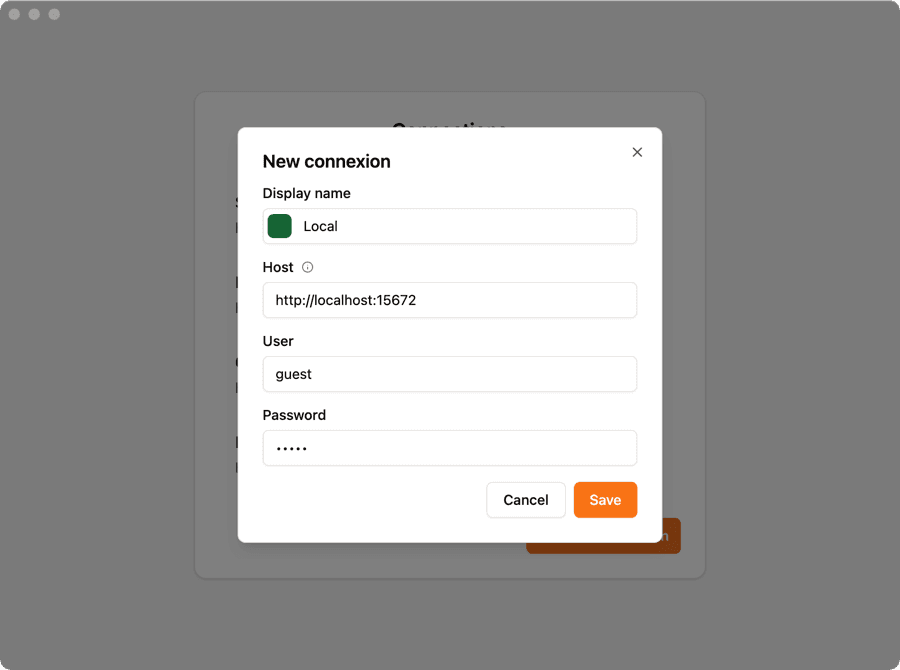
http://localhost:15672with guest/guest
Docker Compose Setup
For more complex setups or production environments, Docker Compose is the recommended approach. Create a docker-compose.yml file:
version: '3.8'
services:
  rabbitmq:
    image: rabbitmq:management
    container_name: rabbitmq
    ports:
      - "5672:5672"
      - "15672:15672"
    environment:
      RABBITMQ_DEFAULT_USER: admin
      RABBITMQ_DEFAULT_PASS: secure_password
    volumes:
      - rabbitmq_data:/var/lib/rabbitmq
      - rabbitmq_log:/var/log/rabbitmq

volumes:
  rabbitmq_data:
  rabbitmq_log:
Start your RabbitMQ instance:
docker-compose up -dStop it:
docker-compose downThe connection string is now: amqp://admin:secure_password@localhost:5672
Important Configuration Settings
Custom Credentials
Always change the default credentials in production environments using environment variables:
environment:
  RABBITMQ_DEFAULT_USER: your_username
  RABBITMQ_DEFAULT_PASS: your_password
The default guest user can only connect from localhost for security reasons. Custom users can connect remotely. When RABBITMQ_DEFAULT_USER is set, guest is not created at all, see RabbitMQ default credentials for how login works on a fresh instance.
Persistent Storage
Without volumes, all your queues, exchanges, and messages disappear when the container stops. Always use volumes for data persistence:
volumes:
  - rabbitmq_data:/var/lib/rabbitmq
This ensures your RabbitMQ configuration and messages survive container restarts.
Memory and Resource Limits
Control how much memory RabbitMQ can use to prevent it from consuming all system resources:
services:
  rabbitmq:
    image: rabbitmq:management
    deploy:
      resources:
        limits:
          memory: 2G
        reservations:
          memory: 1G
    environment:
      RABBITMQ_VM_MEMORY_HIGH_WATERMARK: 1536MB
The RABBITMQ_VM_MEMORY_HIGH_WATERMARK setting tells RabbitMQ to block publishers when memory usage reaches this threshold, preventing out-of-memory crashes.
Hostname Configuration
RabbitMQ uses the hostname as part of its node identifier. For consistent data persistence, set a fixed hostname:
services:
  rabbitmq:
    image: rabbitmq:management
    hostname: rabbitmq-server
    environment:
      RABBITMQ_NODENAME: rabbit@rabbitmq-server
Without this, changing the hostname can make RabbitMQ unable to read its persisted data.
Virtual Hosts (vhosts)
Create isolated environments within a single RabbitMQ instance using virtual hosts:
environment:
  RABBITMQ_DEFAULT_VHOST: /production
You can also create multiple vhosts through the management UI or using RabbitGUI. This is useful for separating development, staging, and production environments.
Enable Additional Plugins
RabbitMQ comes with many optional plugins. Enable them using environment variables:
environment:
  RABBITMQ_PLUGINS: rabbitmq_management rabbitmq_prometheus rabbitmq_shovel rabbitmq_federation
Common useful plugins:
rabbitmq_management- Web UI (included in management image)rabbitmq_prometheus- Prometheus metrics for monitoringrabbitmq_shovel- Move messages between queues/exchangesrabbitmq_federation- Link exchanges across different RabbitMQ instancesrabbitmq_tracing- Debug message flow
Custom Configuration File
For advanced configurations, mount a custom rabbitmq.conf file:
services:
  rabbitmq:
    image: rabbitmq:management
    volumes:
      - ./rabbitmq.conf:/etc/rabbitmq/rabbitmq.conf
      - rabbitmq_data:/var/lib/rabbitmq
Example rabbitmq.conf:
# Networking
listeners.tcp.default = 5672

# Memory
vm_memory_high_watermark.relative = 0.6

# Disk
disk_free_limit.absolute = 2GB

# Heartbeat
heartbeat = 60

# Logging
log.console.level = info
log.file.level = info
SSL/TLS Configuration
For secure connections, configure SSL certificates:
services:
  rabbitmq:
    image: rabbitmq:management
    ports:
      - "5671:5671"  # AMQPS port
      - "15672:15672"
    volumes:
      - ./certs:/etc/rabbitmq/certs
      - ./rabbitmq.conf:/etc/rabbitmq/rabbitmq.conf
    environment:
      RABBITMQ_SSL_CACERTFILE: /etc/rabbitmq/certs/ca_certificate.pem
      RABBITMQ_SSL_CERTFILE: /etc/rabbitmq/certs/server_certificate.pem
      RABBITMQ_SSL_KEYFILE: /etc/rabbitmq/certs/server_key.pem
Health Checks
Add health checks to ensure RabbitMQ is ready before your applications try to connect:
services:
  rabbitmq:
    image: rabbitmq:management
    healthcheck:
      test: rabbitmq-diagnostics -q ping
      interval: 30s
      timeout: 10s
      retries: 5
      start_period: 40s
Complete Production-Ready Example
Here's a comprehensive Docker Compose setup combining all the important settings:
version: '3.8'

services:
  rabbitmq:
    image: rabbitmq:3.13-management
    container_name: rabbitmq-production
    hostname: rabbitmq-server
    restart: unless-stopped
    ports:
      - "5672:5672"
      - "15672:15672"
    environment:
      RABBITMQ_DEFAULT_USER: admin
      RABBITMQ_DEFAULT_PASS: ${RABBITMQ_PASSWORD:-changeme}
      RABBITMQ_DEFAULT_VHOST: /production
      RABBITMQ_NODENAME: rabbit@rabbitmq-server
      RABBITMQ_VM_MEMORY_HIGH_WATERMARK: 1536MB
    volumes:
      - rabbitmq_data:/var/lib/rabbitmq
      - rabbitmq_log:/var/log/rabbitmq
      - ./rabbitmq.conf:/etc/rabbitmq/rabbitmq.conf:ro
    deploy:
      resources:
        limits:
          memory: 2G
          cpus: '2'
        reservations:
          memory: 1G
          cpus: '1'
    healthcheck:
      test: rabbitmq-diagnostics -q ping
      interval: 30s
      timeout: 10s
      retries: 5
      start_period: 40s
    networks:
      - backend

networks:
  backend:
    driver: bridge

volumes:
  rabbitmq_data:
    driver: local
  rabbitmq_log:
    driver: local
Start it with:
RABBITMQ_PASSWORD=your_secure_password docker-compose up -dClustering Multiple RabbitMQ Nodes
For high availability, you can set up a RabbitMQ cluster with Docker Compose:
version: '3.8'

services:
  rabbitmq1:
    image: rabbitmq:management
    hostname: rabbitmq1
    environment:
      RABBITMQ_ERLANG_COOKIE: 'secret_cookie_value'
      RABBITMQ_DEFAULT_USER: admin
      RABBITMQ_DEFAULT_PASS: password
    ports:
      - "5672:5672"
      - "15672:15672"
    networks:
      - rabbitmq_cluster

  rabbitmq2:
    image: rabbitmq:management
    hostname: rabbitmq2
    environment:
      RABBITMQ_ERLANG_COOKIE: 'secret_cookie_value'
    depends_on:
      - rabbitmq1
    networks:
      - rabbitmq_cluster
    command: >
      bash -c "
        rabbitmq-server -detached &&
        rabbitmqctl stop_app &&
        rabbitmqctl join_cluster rabbit@rabbitmq1 &&
        rabbitmqctl start_app &&
        tail -f /dev/null
      "

  rabbitmq3:
    image: rabbitmq:management
    hostname: rabbitmq3
    environment:
      RABBITMQ_ERLANG_COOKIE: 'secret_cookie_value'
    depends_on:
      - rabbitmq1
    networks:
      - rabbitmq_cluster
    command: >
      bash -c "
        rabbitmq-server -detached &&
        rabbitmqctl stop_app &&
        rabbitmqctl join_cluster rabbit@rabbitmq1 &&
        rabbitmqctl start_app &&
        tail -f /dev/null
      "

networks:
  rabbitmq_cluster:
    driver: bridge
All three nodes share the same Erlang cookie and form a cluster where queues and exchanges are replicated.
Monitoring and Management
Once your RabbitMQ instance is running, you can manage it using:
- RabbitMQ Management UI: Basic web interface at
http://localhost:15672 - RabbitGUI: Advanced RabbitMQ IDE with features like:
- Visual routing exploration
- Bulk message operations
- Dead-letter queue management
- Custom views and saved queries
- Multi-environment support
To connect with RabbitGUI, simply point it to your RabbitMQ management endpoint with your credentials.
Common Issues and Troubleshooting
Container Exits Immediately
Check the logs:
docker logs rabbitmqCommon causes:
- Hostname conflicts with persisted data
- Insufficient memory
- Port conflicts
Cannot Connect from Host Machine
Ensure ports are properly exposed and not blocked by firewall:
docker ps  # Check port mappings
netstat -an | grep 5672  # Check if port is listening
Lost Data After Restart
Make sure you have volumes configured:
docker volume ls  # List volumes
docker volume inspect rabbitmq_data  # Check volume details
Next Steps
Now that you have RabbitMQ running, you might want to:
- Learn about setting up dead-letter queues
- Explore RabbitMQ bindings visually
- Use the RabbitMQ monitoring API for metrics from your new instance
- Check out our RabbitMQ cheat sheets for different programming languages
With Docker and Docker Compose, getting RabbitMQ up and running is straightforward. Start with the quick example, then gradually add configuration options as your needs grow.